How to Enable Real-Time Review Webhook Notifications
Receive instant notifications whenever a new review or review response is created across your locations. With the Webhook sub-feature enabled, Synup sends real-time data to a URL you specify — allowing you to integrate review events directly into your own systems, dashboards, or third-party tools.
Prerequisites:
- You must have the Webhook sub-feature enabled on your account. If you don't see the Webhooks URL field under Notification Settings, contact your account manager or Synup support to have it activated.
- You need Admin or Owner level access to configure account-level settings. See Understanding Roles and Permissions for details.
- You need a working webhook endpoint URL ready to receive POST requests from Synup.
Configuring Your Webhook URL:
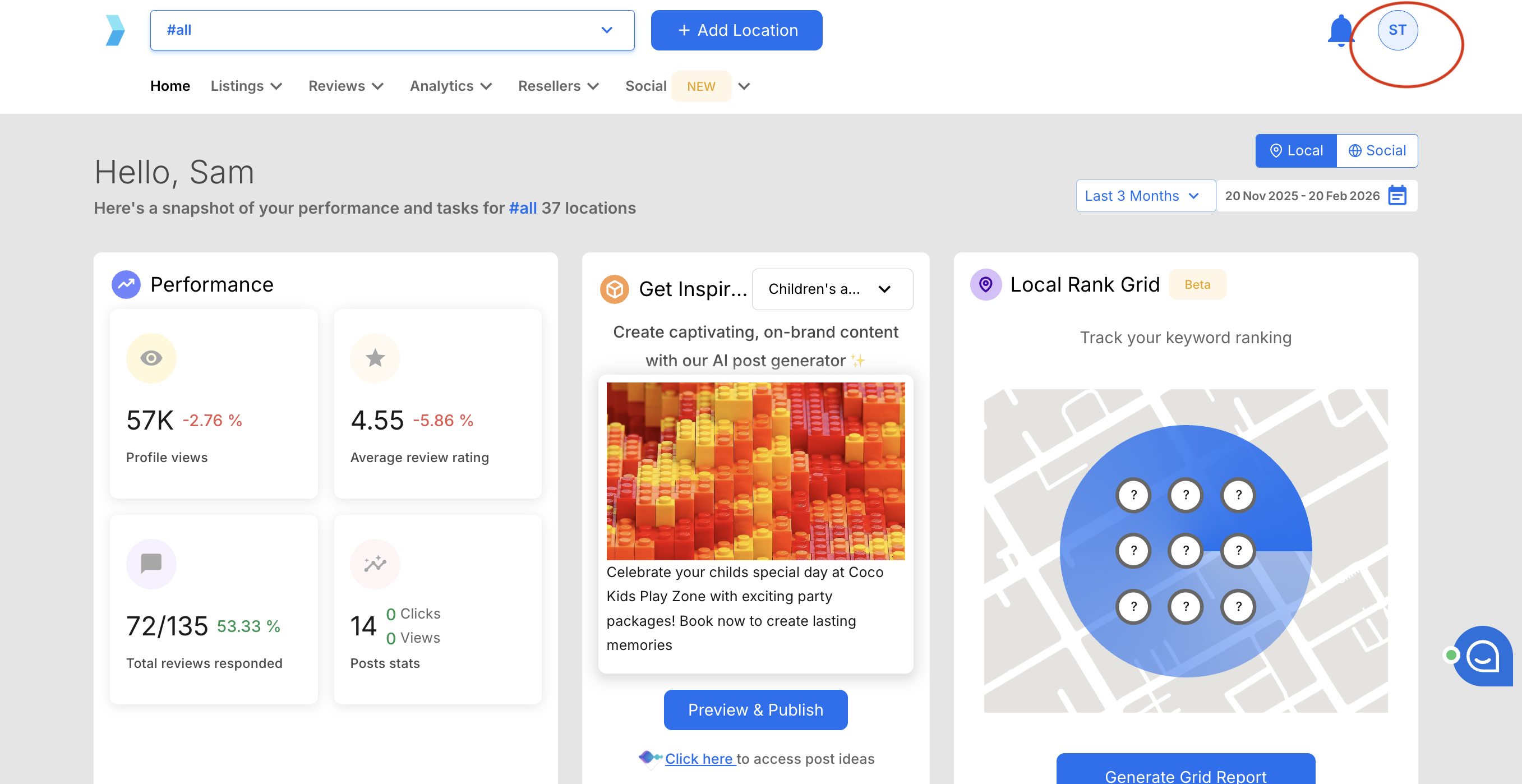
Step 1: Click your profile icon in the top-right corner of the Synup dashboard.
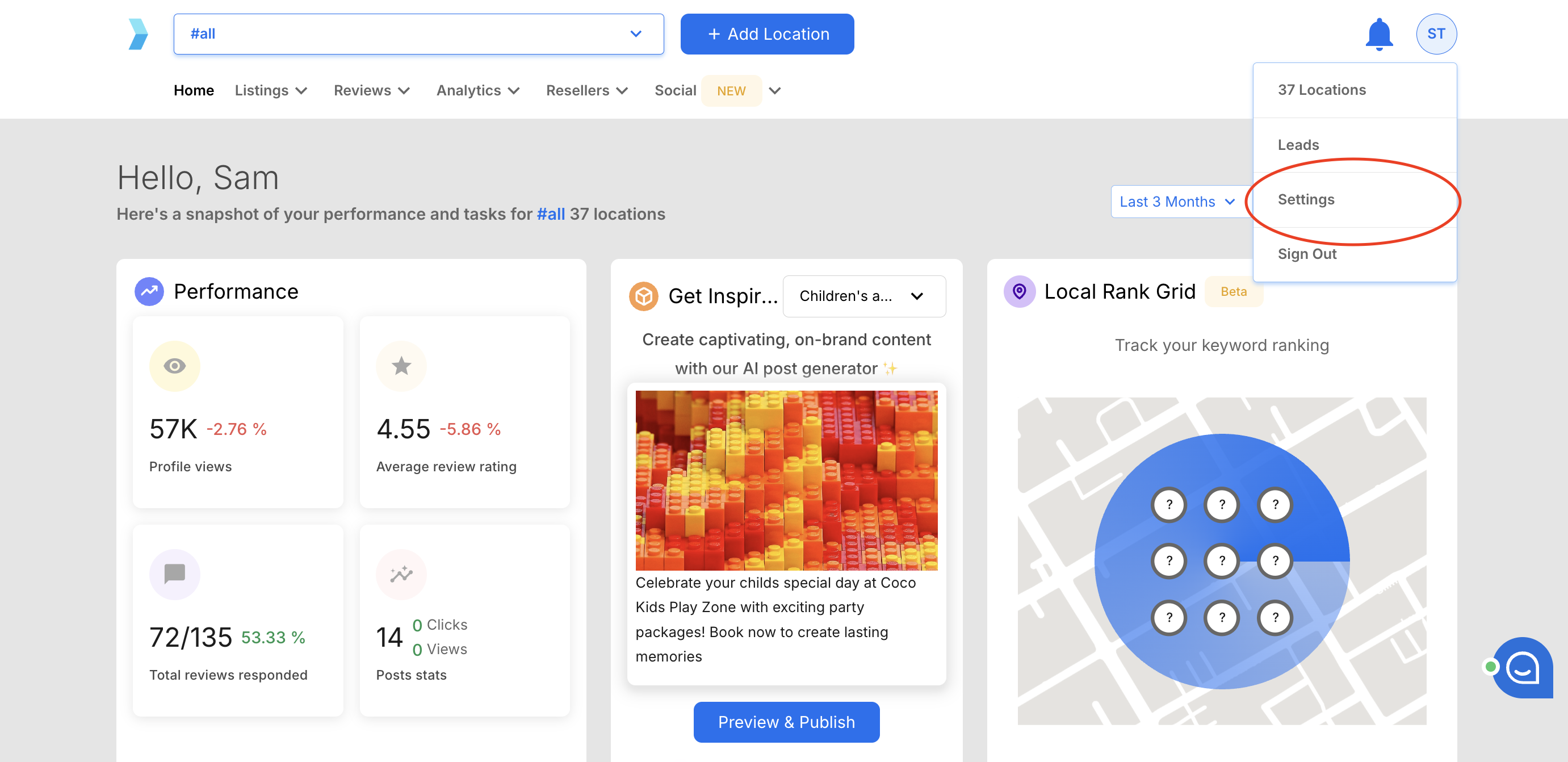
Step 2: Select Settings from the dropdown menu.
Step 3: Click Notification Settings in the left sidebar. You'll see it listed between People and Integrations.
Step 4: Confirm you are on the Local Email tab at the top of the page. The webhook configuration is located at the bottom of this view.
Step 5: Scroll down to the Webhooks URL section.
Step 6: Enter your webhook endpoint URL in the Update webhook URL field. This should be a publicly accessible URL that can accept incoming POST requests (e.g., https://yourapp.com/api/synup-webhooks).
Step 7: Click the Update button to save your webhook URL.
What Gets Sent to Your Webhook:
Once configured, your webhook endpoint receives notifications for the following events:
- New review created — triggered when a customer leaves a new review on any connected review platform (Google, Facebook, etc.)
- Review response created — triggered when a response is posted to a review, whether manually or via automation
Each webhook payload is sent as a POST request containing details about the event, including the location, review content, rating, and platform.
Important Note: Webhook delivery is real-time but depends on when Synup detects the new review from the source platform. There may be a slight delay between when a review is published on Google or Facebook and when Synup picks it up and triggers the webhook.
Related Articles
How to setup your location email notifications
Feature Prerequisites: Ensure that your Whitelabeled Dashboard is set up. An overview of the Setup To enable Email Notifications from your agency's white-labeled dashboard, you need to run a setup that involves: Configuring the 'From' Email Settings ...Manage your Notification emails
Select the Type of Notifications you want to enable. Click on the toggle switch to activate any of the notifications you want to enable. When activated, you can access the edit and test features for each type of notification. Editing Email ...Types of Agency Notification emails
As an agency, you can set up an email notification system to engage with your clients. There are 6 types of client email notifications that you can set up: Insights Report Email Review Notification Email Review Response Email Profile Completion Email ...